 explained
1. Open the official API key page
Sign in to the DeepSeek platform and use its API key management page to create or obtain a key. Follow the platform’s current account and billing instructions.
A DeepSeek website session is different from an API key. The API edition does not use a chat.deepseek.com connection tab.
2. Enter the key in extension setup
- Install the Chrome extension, or open API settings from its toolbar if it is already installed.
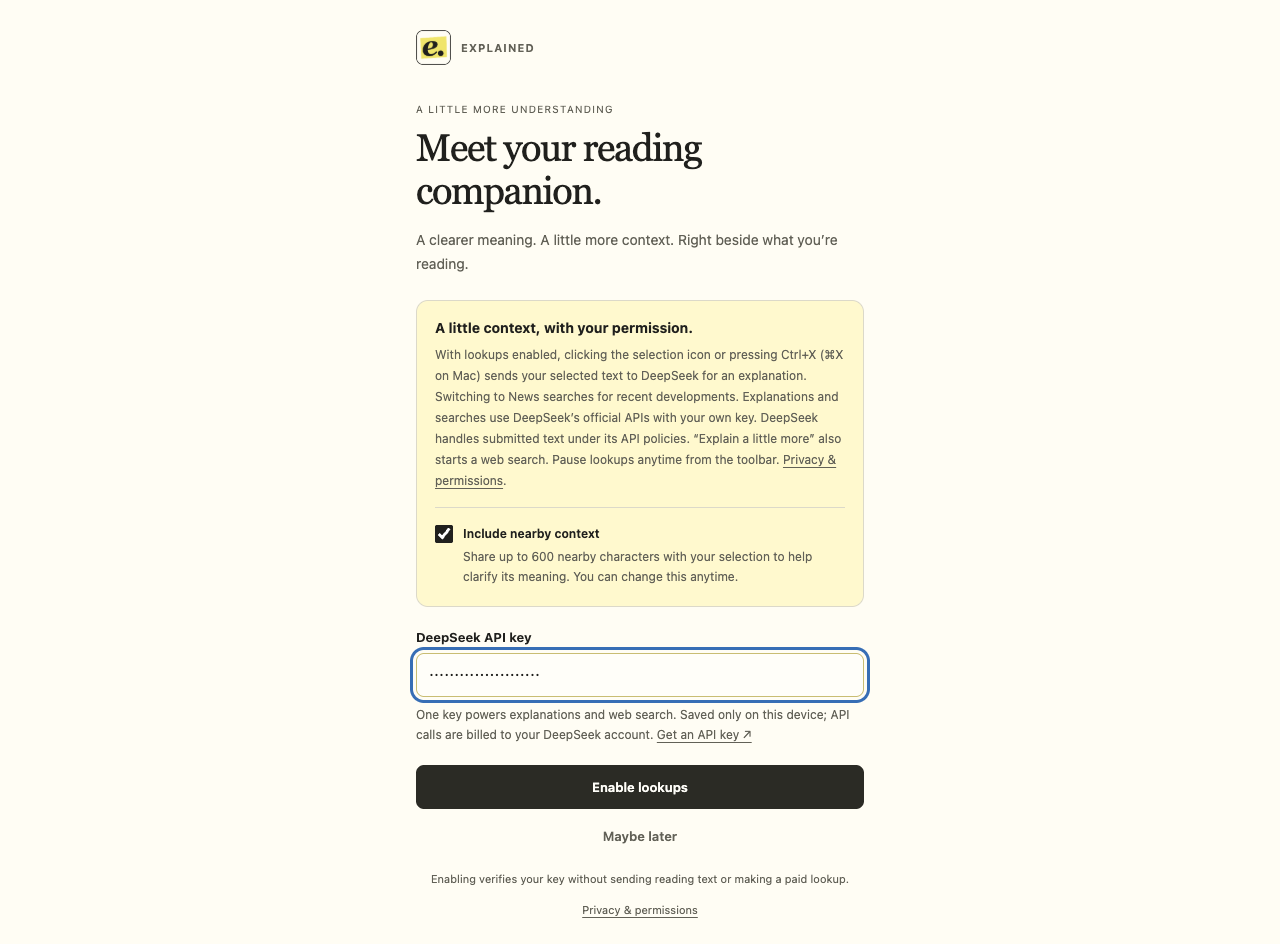
- Paste your key into the DeepSeek API key field. Decide whether to include nearby context.
- Choose Enable lookups. Setup verifies the key through the model-list API, without submitting reading text or starting a model or search lookup.
3. Make your first lookup
Choose Start exploring, or open the practice reading room. Refresh a reading page that was already open before installation.
Highlight a phrase, then click its icon or press Ctrl+X (⌘X on Mac). A model request starts only when you activate the selection. News, time-sensitive queries and Explain a little more also use search.
4. Replace or keep your saved key
Open API settings again to replace a key. If setup says a key is saved, leaving the field empty retains that key for revalidation.
Never paste a key into a reading article, GitHub issue or public screenshot. If you suspect it has been exposed, manage or revoke it through the official platform and update extension settings.
Understand billing and storage
Model and search calls are billed to your DeepSeek API account. Check the official platform for current pricing, account access and balance; this page does not promise a free allowance or a fixed per-lookup price.
The key is saved in local extension storage on this device and attached to background API requests. Reading-page content scripts do not receive it. Review the full policy before submitting sensitive text.